
Appearance
The User Interface
The Situate viewer is composed of multiple panels which display information about and interact with the Situate environment.
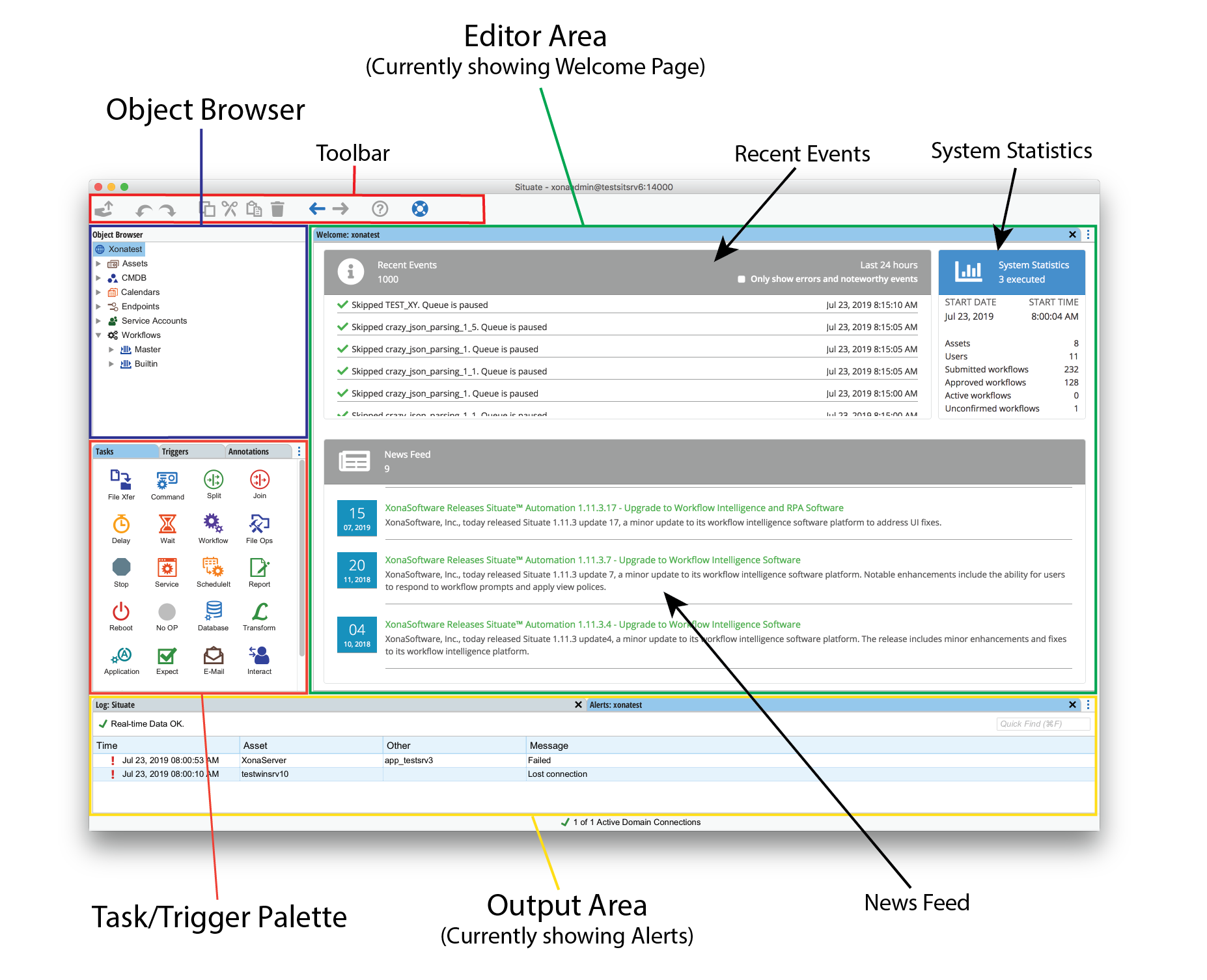
Toolbar
The toolbar contains a persistent set of buttons for the following common operations:
- Submit - Submits (or saves) a modified workflow open in the active editor tab. In Situate, a workflow must be approved after it is submitted before it can run.
- Undo - Undo the last edit operation.
- Redo - Redo an undone edit operation.
- Copy - Copy the selected object onto the clipboard.
- Cut - Copy the selected object onto the clipboard, then remove the object.
- Paste - Paste the object on the clipboard into the selected object.
- Delete - Delete the selected object.
- Go Back - Go back to the previously selected tab. In Situate it's common to drill into successive items. The back button is helpful when you want to "drill back out".
- Go Forward - Go forward to a previously selected tab.
- Help - Open the help system and go to a document that describes the selected tab.
- Help Report - Generate a help report sent to XonaSoftware for analysis. This the best way to open a support ticket. A help report will contain basic configuration information about your server and Situate logs. It will not contain any security information of any kind.
The Object Browser
The object browser is the navigational backbone of the Situate environment. Every core Situate feature is accessible through the Object Browser, as are their groups and configurations.
The next sections will introduce the object browser in more detail.
The Editor
The editor area handles the viewing and editing of elements which have been opened with the object browser.
The Palette
The palette contains the tasks, triggers, annotations and other objects needed to create a workflow in the editor.
For information about creating a workflow, see Creating Workflows.
The Output Area
The output area shows workflow output and auxiliary information created by searches or finds.
Log
A log of recent workflow executions will display in the log tab of the output area.
Alerts
Any alerts generated by Situate will display in the alerts tab of the output area.
The Welcome Page
The welcome page is shown when you first log in. It contains the following at-a-glance information about the Situate server:
Recent Events
The recent events section shows the most recent workflow executions, submissions and other notable events on the server.
System Statistics
The system statistics show basic information about the server such as the number of workflows and assets available to the server.
News Feed
The news feed section contains information about recent Situate releases, patches and security updates.